
Visual Studio Code, usually called VS Code, is a free code editor from Microsoft. This page shows how to install it on Windows or on a Mac, how to open a folder of files in it, and how to open the terminal.
- 6 short steps
- A check after the key steps
- Windows and Mac
Before you start: you need a Windows or Mac computer with an internet connection. The download is a single file, and it is free. Use only the official website, code.visualstudio.com.
1 Download VS Code
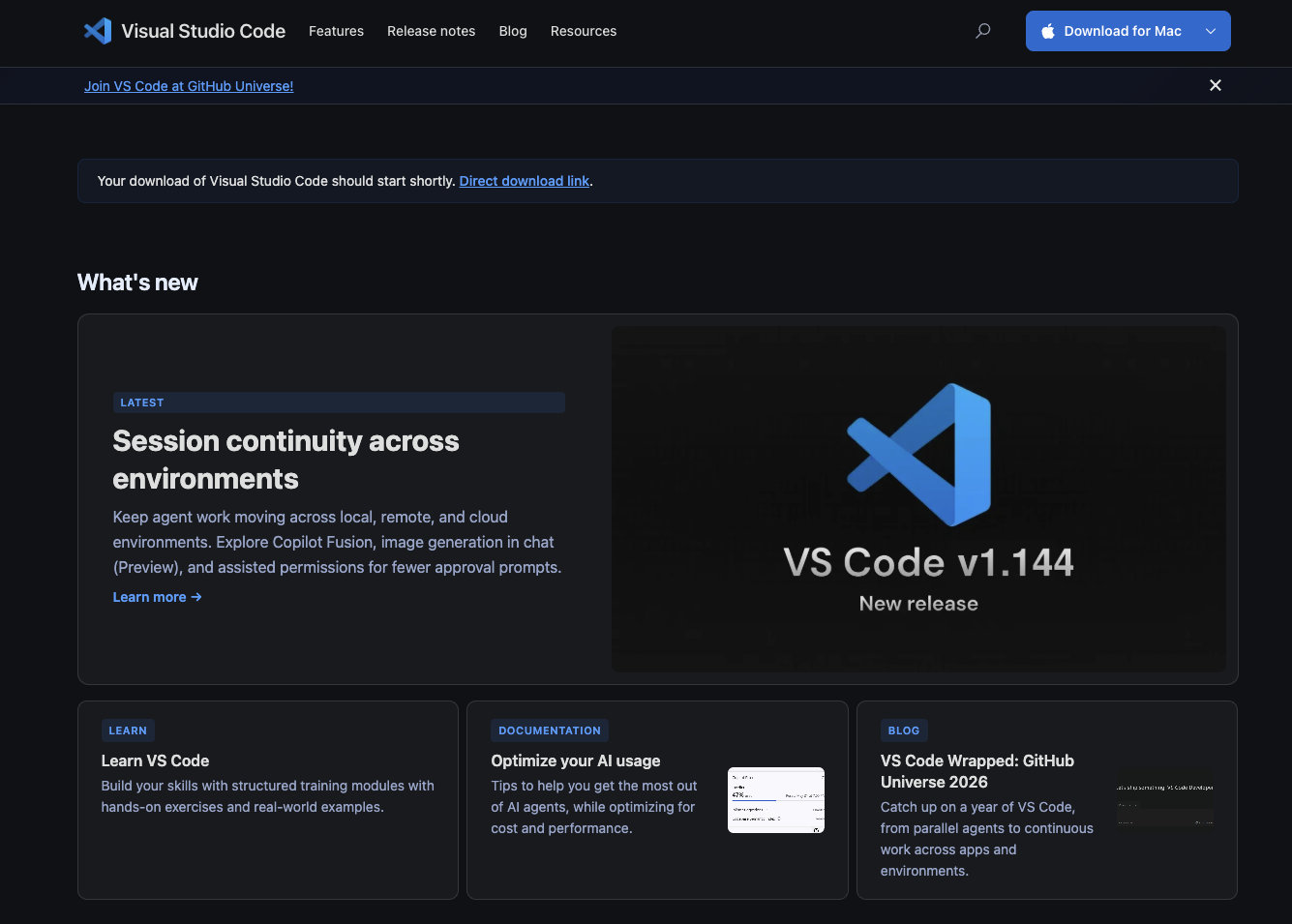
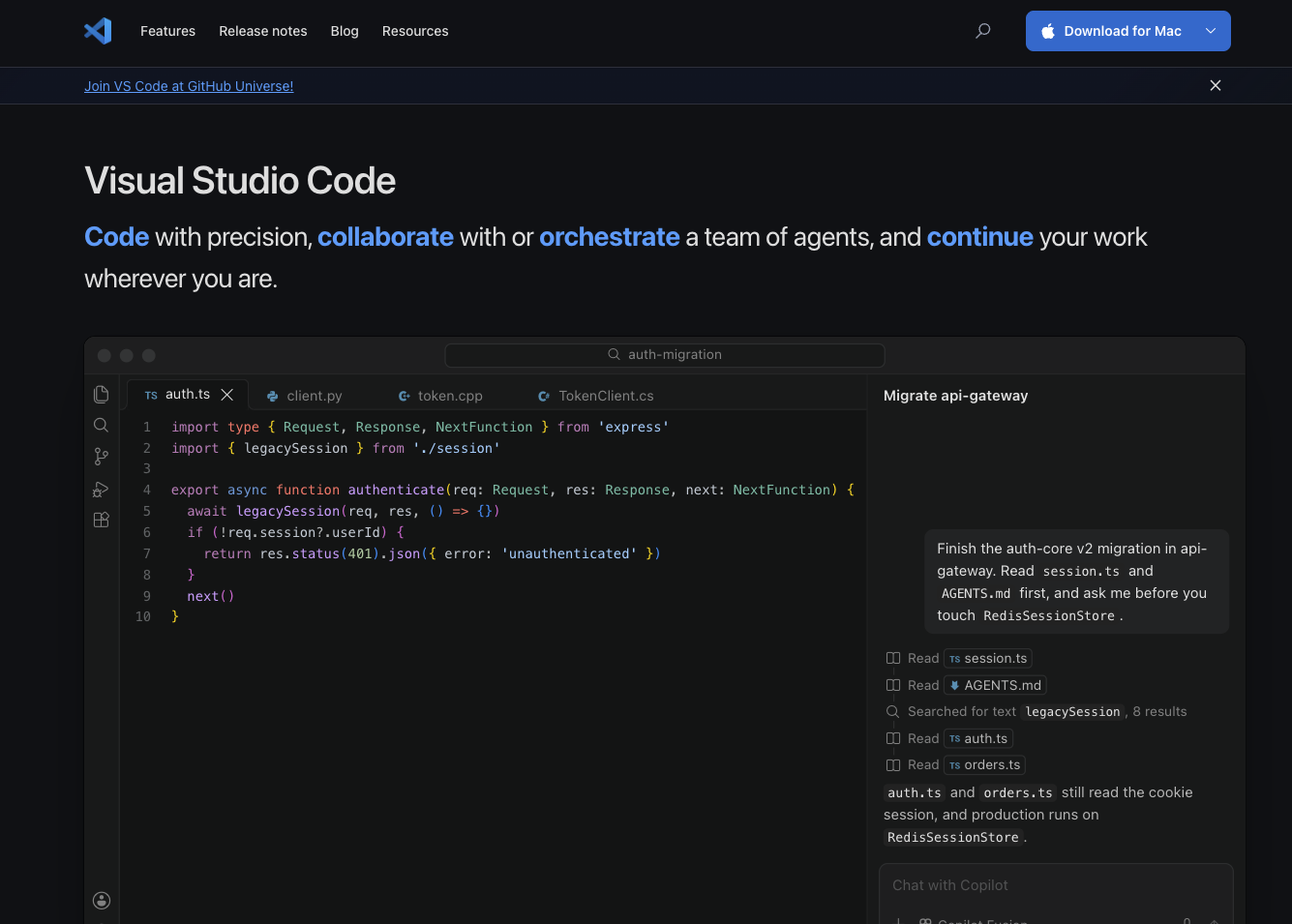
- Open code.visualstudio.com/download in your browser.
- Click the download button for your computer, Windows or Mac. The page usually highlights the right one for you.
- Wait for the file to finish downloading. It is saved in your Downloads folder, and most browsers also show it in a small download list near the top of the window.

2 Install on Windows
- Open your Downloads folder and double-click the file you downloaded. Its name starts with VSCodeUserSetup.
- Read the licence agreement, select I accept the agreement, and click Next.
- Click Next on the screens that follow to keep the default options. On the Select Additional Tasks screen, you can also tick the two Open with Code options. They add an Open with Code choice to the right-click menu for files and folders, which makes opening your work quicker.
- Click Install and wait for it to finish.
- Leave Launch Visual Studio Code ticked and click Finish.
3 Install on a Mac
- Open your Downloads folder. The downloaded file is a zip file. Double-click it, and the Visual Studio Code app appears next to it.
- Drag the Visual Studio Code app into your Applications folder.
- Open your Applications folder and double-click Visual Studio Code.
- If your Mac says the app was downloaded from the internet and asks whether you are sure you want to open it, click Open.
4 Check That It Opened
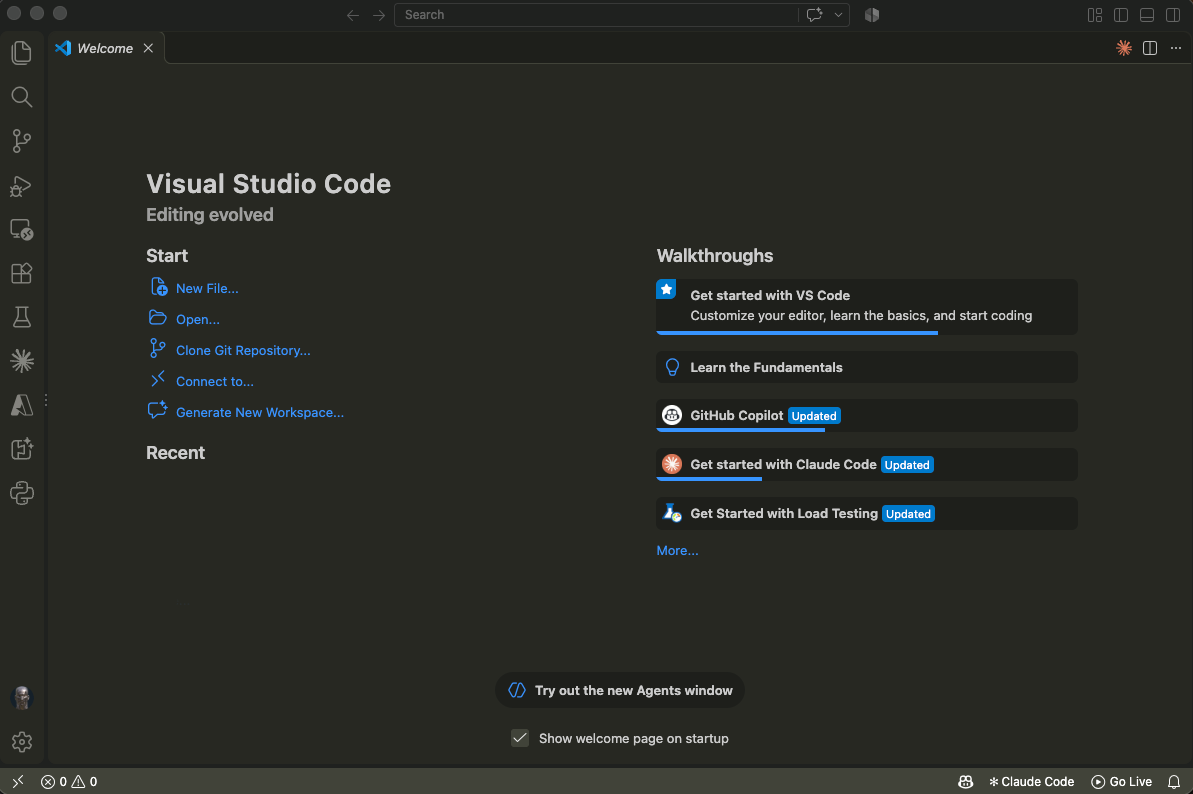
A window titled Visual Studio Code opens with a Welcome tab. A column of small icons runs down the left-hand side. If you see this, the installation worked.
If you need to open it again later, on Windows click the Start menu, type Visual Studio Code and press Enter. On a Mac, press Command and Space, type Visual Studio Code and press Return.
5 Open a Folder in VS Code
VS Code works on a whole folder at a time, so that all the files in it are listed on the left.
- In VS Code, open the File menu and click Open Folder.
- Find the folder you want, select it, and click Select Folder on Windows or Open on a Mac.
- If VS Code asks Do you trust the authors of the files in this folder?, click Yes, I trust the authors for a folder you downloaded or created yourself.
- The files and folders inside appear in the Explorer list on the left. Click a file to open it in the main window.
Checkpoint
The Explorer list on the left shows the files from your folder, and clicking one opens its contents in the main window.
6 Open the Terminal
The terminal is a panel inside VS Code where you type commands. Lessons that need a command tell you what to type, and this is where you type it.
- With your folder open, click the Terminal menu at the top of VS Code and click New Terminal.
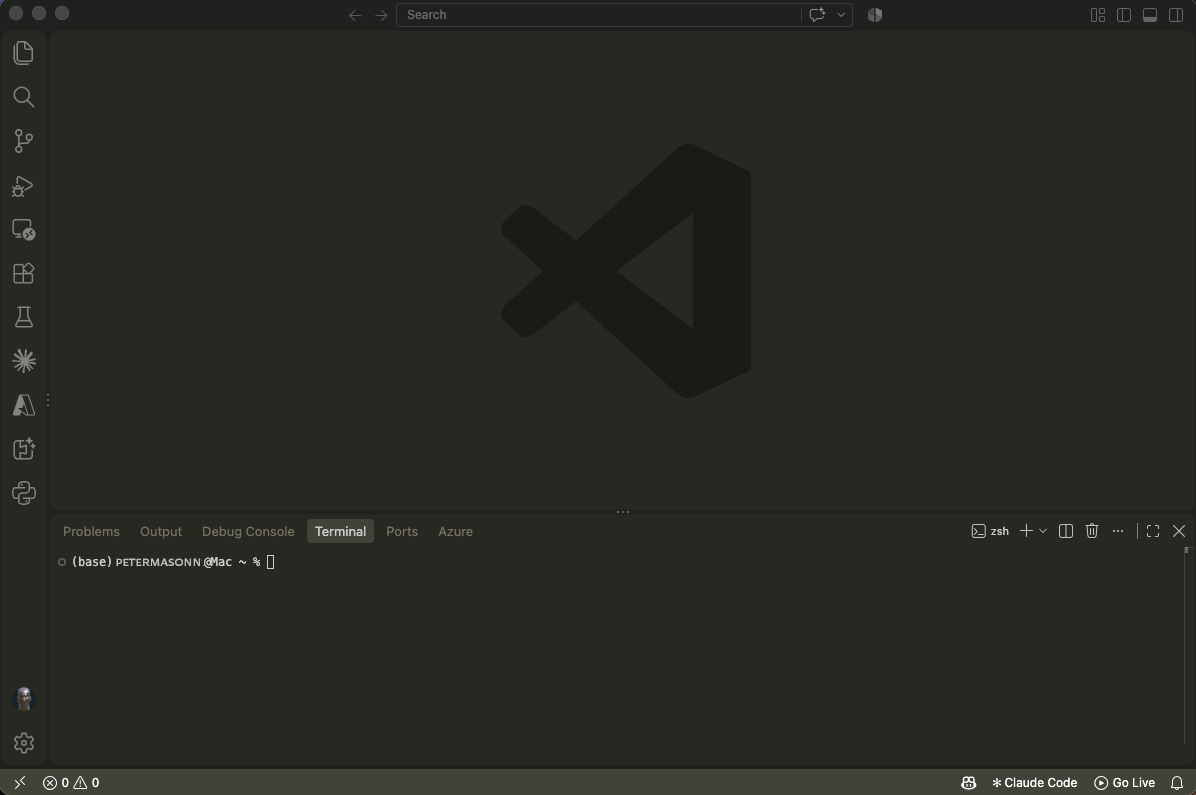
- A panel opens at the bottom of the window. It is already set to your open folder, so anything you run there runs in that folder.
- Click inside the panel, type a command, and press Enter to run it.
Checkpoint
The panel at the bottom shows a line ready for typing, and that line includes the name of your folder.
? If Something Goes Wrong
- The download did not start: click the download button again, or check that your browser has not blocked the download.
- Windows asks whether you want to allow the app to make changes: click Yes.
- VS Code does not appear in the Start menu or Applications: run the installer again and wait for the Finish screen.
- The folder you opened looks empty: check that you selected the folder itself, not a folder inside it.