
Blender 1: Beginners
Blender is a free program for making 3D models, game objects and cartoons. In this free course you learn it one small step at a time. Want to see what the course covers before you start? Read the full Blender …
Overview
Blender is a free program for making 3D models, game objects and cartoons. In this free course you learn it one small step at a time.
Want to see what the course covers before you start? Read the full Blender 1 overview.
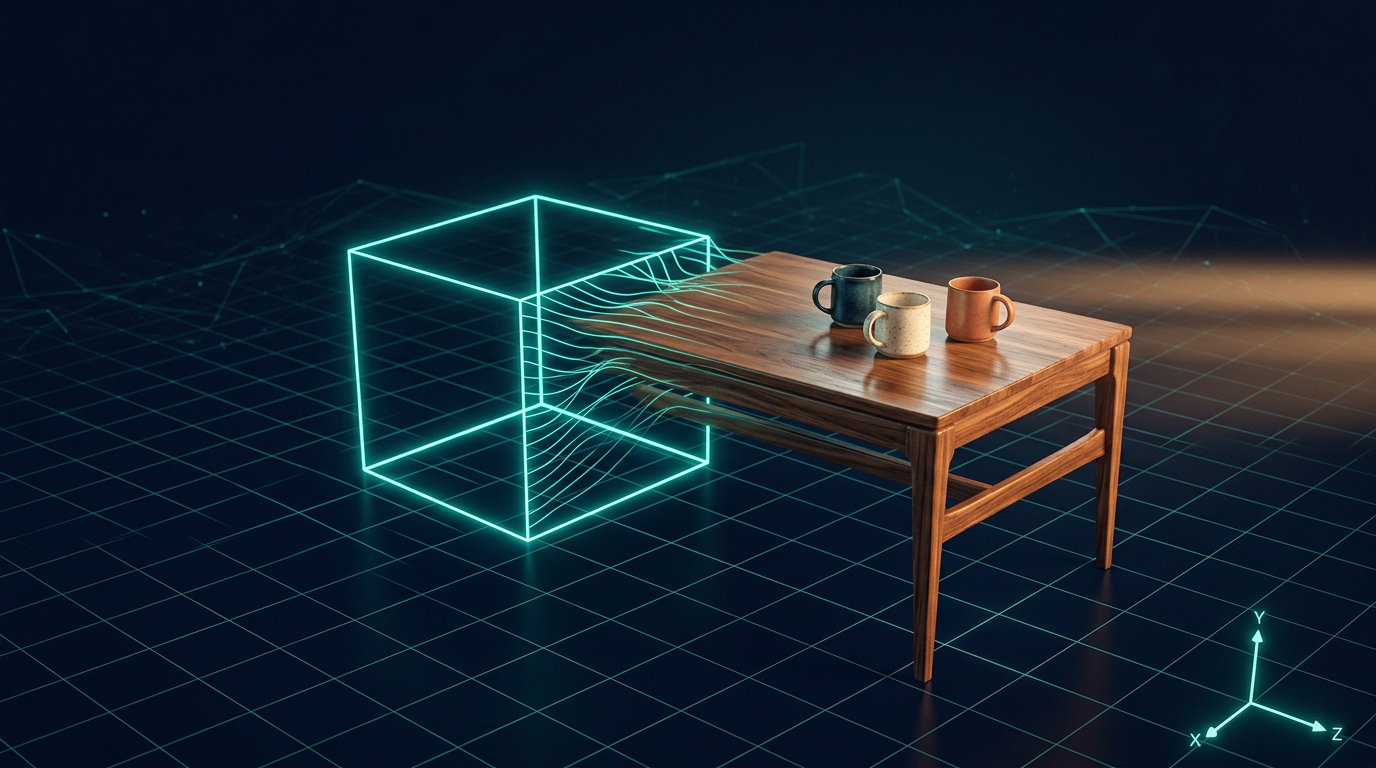
Along the way you build a simple project: a table. You finish by adding a floor, aiming the camera and rendering your first picture. Rendering means letting the computer turn your 3D scene into a finished image. This is Blender 1 of two courses, and Blender 2: Intermediate, a paid course, continues from here.
You need a computer
Read the cards on your phone, tablet or the computer itself, and do each step in Blender. The course uses Blender 5.2 on Windows or macOS, and no experience is needed.
The CulerLearn app is the best way to follow the course. It shows each lesson as cards that guide you one step at a time and keep your place.
See It in the App
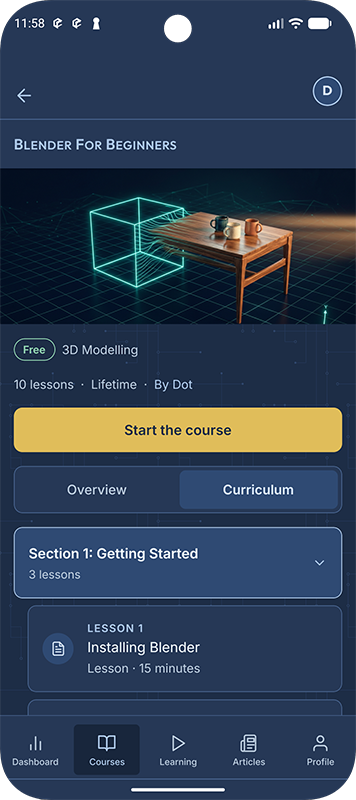
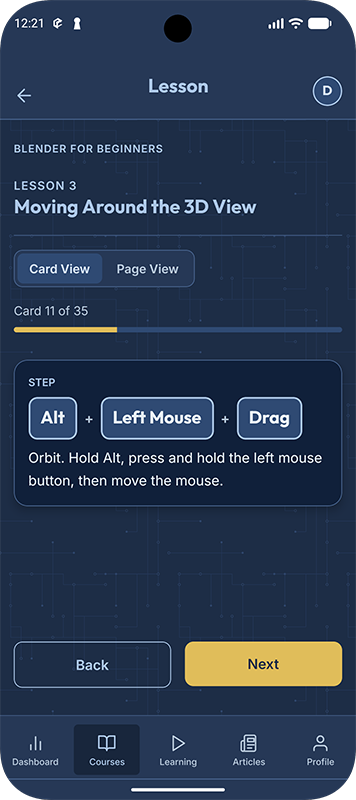
Each lesson is a set of short cards. The keys to press are shown large at the top, with a plain instruction underneath, so you can follow along in Blender one step at a time.
What You Will Learn
By the end of this course, you will be able to:
- Install Blender on your computer
- Find your way around the Blender screen
- Move objects around a 3D scene
- Build a simple table from basic shapes
- Shape a model in Edit Mode
- Render and save your first picture
The 6 Lessons
- Welcome to Blender. Find out what Blender is and where it is used, then download it, install it on Windows or macOS, and open it for the first time.
- The Interface and Preferences. Learn what the main areas of the screen do, and set up Blender so it is comfortable to use.
- Moving Around the 3D View. Look at your scene from any side, and learn the controls for turning, zooming and sliding the view.
- Moving Objects and Building a Table. Add shapes to your scene, then move, rotate and scale them to make a table.
- Shaping with Edit Mode. Change an object’s shape by working directly on its points, edges and faces.
- Render Your Table. Add a floor, aim the camera, then render and save your first picture.
What You Need
- A computer running Windows or macOS. Blender 5 needs a Mac with an Apple silicon chip.
- At least 8 GB of memory, and room for a download of about 300 to 400 MB.
- A mouse with a scroll wheel is helpful, but not required. Lessons 2 and 3 show how to manage on a laptop trackpad.
Who is it for? Anyone who wants to start with Blender and has never opened it before: students, hobbyists, and people who are simply curious about 3D. Each step is short, and you can stop and pick up where you left off. When you finish, Blender 2: Intermediate takes you further.
Start the Course
Get the CulerLearn App
The lessons are in the CulerLearn app, open to learners worldwide.
Instructor

Curriculum
Curriculum
- 3 Sections
- 6 Lessons
- Lifetime
- Section 1: Getting Started3 Items
- Section 2: Building the Project2 Items
- Section 3: Our First Render1 Item
You May Like
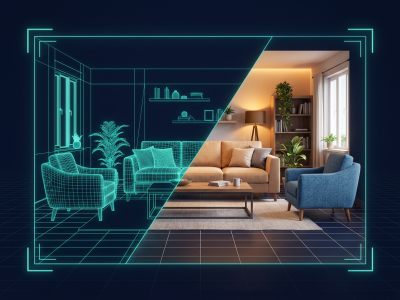
Blender Extended
Blender for Beginners showed you how to move around Blender and make your first scene. Blender Extended takes you further. You will build better models...
Course Features
- Lectures 6
- Quiz 0
- Duration Lifetime access
- Skill level Beginner
- Language English
- Students 3
- Certificate No
- Assessments Yes